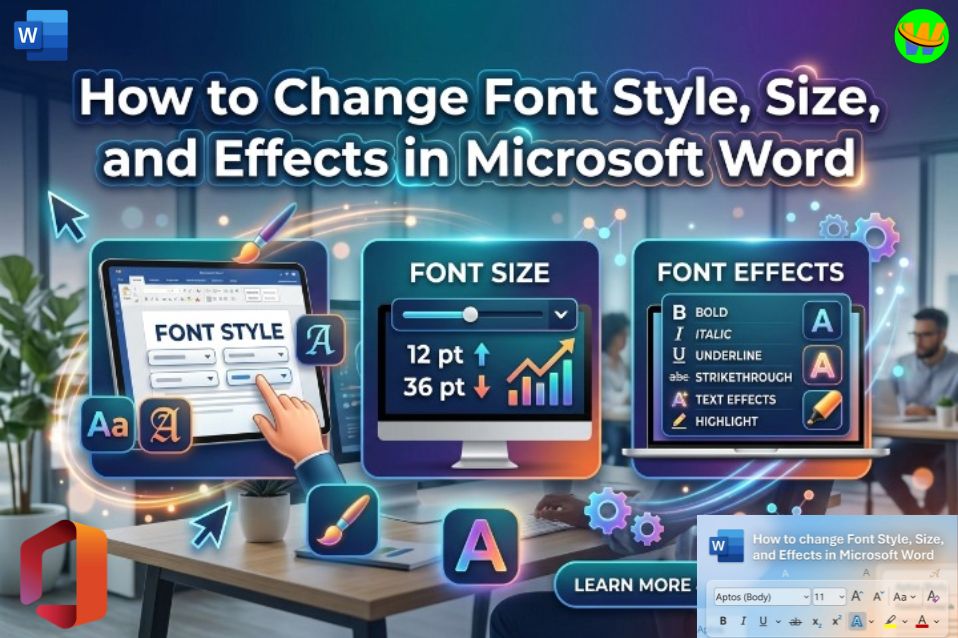
How to Change Font Style, Size, and Effects in Microsoft Word
When you open a blank document in Microsoft Word, the text you type appears in a default font style and size. But documents become much more attractive, readable, and professional when you adjust the font style, size, and effects.
Think about it. A simple document written in the same font everywhere can look dull and difficult to read. But when you use headings, different sizes, bold text, and other effects, the document becomes clearer and more engaging.
Whether you are writing a report, assignment, blog article, resume, or professional document, learning how to change font settings is one of the most useful skills in Microsoft Word.
In this article, you will learn simple and easy methods to change font style, font size, and text effects in Microsoft Word. Even if you are a beginner, by the end of this guide you will be able to format your documents like a professional.
Understanding Font Settings in Microsoft Word
Before learning the steps, it helps to understand what font settings actually mean.
Font settings control how your text looks. They include:
- Font Style – The design of the letters (such as Times New Roman, Arial, Calibri).
- Font Size – How big or small the text appears.
- Font Effects – Special styling like bold, italic, underline, color, shadow, and more.
These options help you organize information so readers can easily understand your document.
For example:
- Titles usually use larger fonts
- Headings use bold formatting
- Important points may use italic or underline
Now let’s learn how to change them.
Step 1: Select the written contents that You Want to change
Before applying any font change, you must first select the text.
Here are some simple ways to select text:
Using the Mouse
- Place your cursor at the beginning of the text.
- Hold the left mouse button.
- Drag over the text.
- Release the mouse.
The text becomes highlighted, which means it is selected.
Quick Selection Tricks
- Double-click → Selects one word
- Triple-click → Selects a full paragraph
- Ctrl + A → Selects the entire document
Once text is selected, you can apply any font changes you want.
How to Change Font Style in Microsoft Word
Font style refers to the design of the letters.
Different fonts create different feelings in a document. Some fonts look formal, while others look modern or creative.
Steps to Change Font Style
- Select the text.
- Go to the Home tab at the top of Word.
- Look for the Font section.
- Click the font name box (where you see the current font).
- Choose a new font from the list.
Your selected text will instantly change to the new font style.
Popular Fonts in Microsoft Word
Some fonts are commonly used because they are easy to read:
- Calibri – Default modern font
- Times New Roman – Traditional and formal
- Arial – Clean and professional
- Cambria – Great for documents and reports
- Verdana – Very clear for digital reading
If you are writing a professional document, choose simple and readable fonts.
How to Change Font Size
Font size controls how large or small your text appears.
Choosing the right size improves readability.
Steps to Change Font Size
- Select the text.
- Go to the Home tab.
- Find the Font Size box.
- Click the drop-down arrow.
- Choose the size you want.
The text will automatically change.
Common Font Sizes
| Typography Size Recommendations | |
|---|---|
| Use Case | Recommended Size (pt) |
| Document Title | 18–28 |
| Headings | 14–18 |
| Normal Text | 11–12 |
| Small Notes | 9–10 |
For most documents, size 12 is standard.
Quick Method: Increase or Decrease Font Size
Instead of selecting a number, you can quickly adjust size.
Steps:
- Select the text.
- In the Home tab, click:
- Increase Font Size (A↑) to make text bigger
- Decrease Font Size (A↓) to make text smaller
This is a very fast method when editing documents.
How to Apply Font Effects
Font effects are used to highlight important information.
They help readers notice key words or sections quickly.
Let’s explore the most common effects.
1. Bold Text
Bold makes text thicker and darker.
It is usually used for:
- Headings
- Important points
- Key words
Steps
- Select text.
- Click the B (Bold) button in the Home tab.
Shortcut:
Ctrl + B
2. Italic Text
Italic text appears slanted.
It is often used for:
- Quotes
- Book titles
- Emphasis
Steps
- Select text.
- Click the I (Italic) button.
Shortcut:
Ctrl + I
3. Underline Text
Underline draws a line under text.
It is commonly used for:
- Important words
- Headings
- Links
Steps
- Select text.
- Click the U (Underline) button.
Shortcut:
Ctrl + U
Changing Font Color
Sometimes black text is not enough. You may want to add color to highlight something.
Steps
- Select text.
- Click the Font Color icon (A with color line).
- Choose a color.
Your text will change immediately.
This is useful for:
- Titles
- Highlighting warnings
- Important instructions
But remember: do not overuse colors, especially in professional documents.
Using Text Highlight
Highlight works like a marker pen on paper.
Steps
- Select text.
- Click the Text Highlight Color button.
- Choose a color.
The background behind the text will become highlighted.
This helps readers focus on important information.
Advanced Font Effects
Microsoft Word also offers additional effects that many users never explore.
To see them:
- Select text.
- Click the small arrow in the Font section.
A Font Settings window will open.
Here you can apply:
- Strikethrough
- Double Strikethrough
- Superscript
- Subscript
- Small Caps
- Shadow
- Outline
These options give you more control over text appearance.
Understanding Superscript and Subscript
These are used in mathematics, chemistry, and technical writing.
Superscript
Text appears above the normal line.
Example:
x²
Shortcut:
Ctrl + Shift + +
Subscript
Text appears below the line.
Example:
H₂O
Shortcut:
Ctrl + =
Changing the Default Font in Microsoft Word
If you always use the same font, you can set it as the default.
Steps
- Open the Font dialog box.
- Choose your preferred font style and size.
- Click Set As Default.
- Confirm your choice.
Now every new document will use that font automatically.
Tips for Making Your Document Look Professional
Changing fonts is easy, but using them wisely is important.
Here are some helpful tips:
1. Do Not Use Too Many Fonts
Using too many fonts can make a document look messy.
Try to use only one or two fonts.
2. Use Larger Fonts for Titles
Titles should stand out clearly.
3. Use Bold for Important Points
But avoid bolding entire paragraphs.
4. Maintain Consistency
Headings should use the same font style and size throughout the document.
5. Keep Text Readable
Fancy fonts may look attractive but can reduce readability.
Always prioritize clarity.
Real-Life Example
Imagine you are writing a report.
Without formatting, it might look like this:
“Safety rules must be followed by all workers. Protective equipment must be worn at all times.”
But with font formatting:
Safety Rules
All workers must follow safety procedures.
Protective equipment must be worn at all times.
Notice how formatting improves readability instantly.
Final Thoughts
Learning how to change font style, size, and effects in Microsoft Word may seem like a small skill, but it makes a huge difference.
Good formatting:
- Makes documents easier to read
- Highlights important information
- Creates a professional appearance
- Keeps readers engaged
By mastering these simple tools, you can transform an ordinary document into something that looks organized, clear, and attractive.
Practice changing fonts, experimenting with sizes, and applying effects. After a little practice, formatting text in Microsoft Word will become natural and effortless.
And once you learn it well, every document you create will look more polished, professional, and impressive.